
1
Choose Your Creator
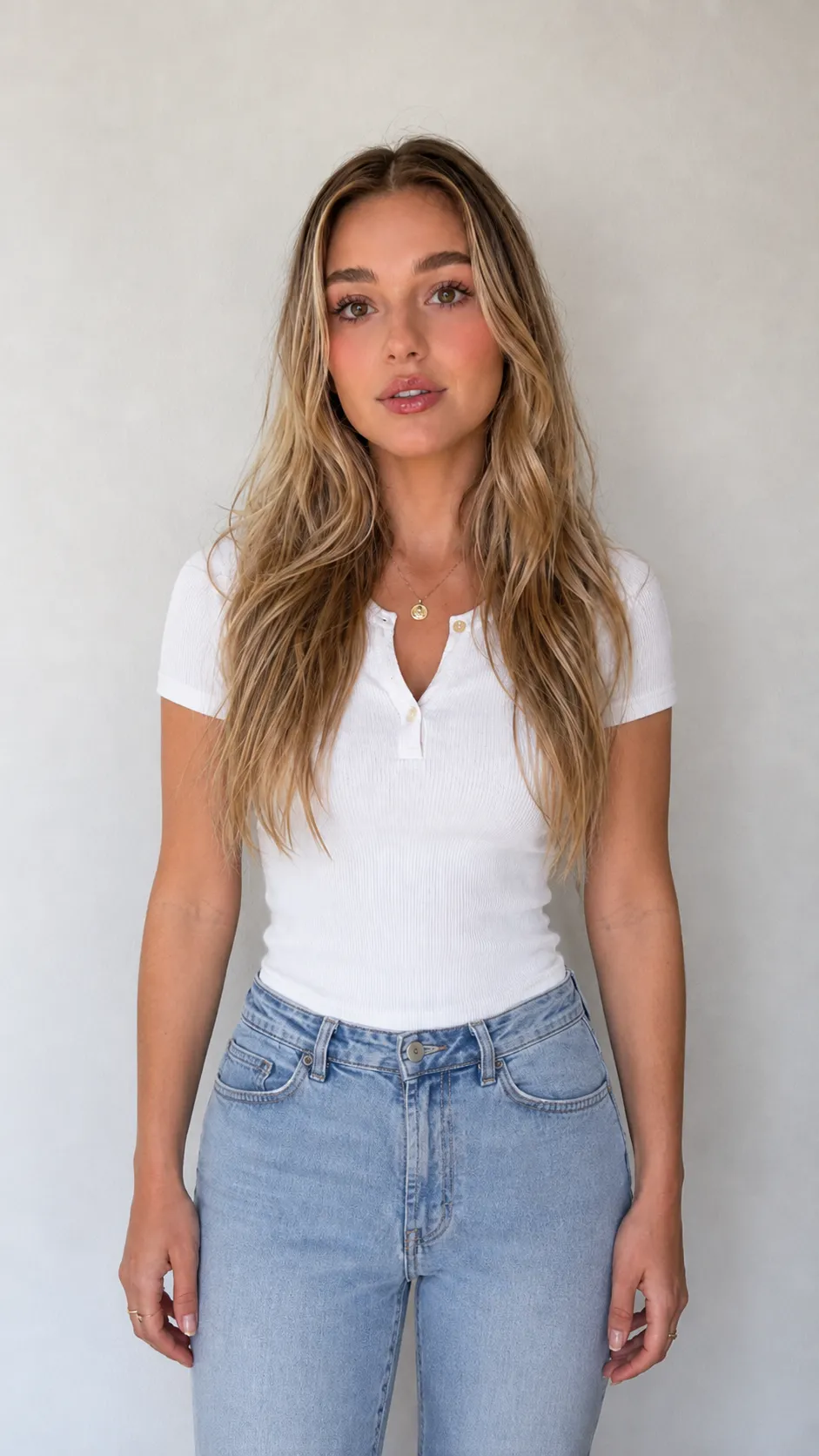
Start with a creator or character who fits your brand.
Choose your creator, add your product details, and generate an original UGC-style ad.
Start with a creator or character who fits your brand.
Add your product images and information, then set the creative direction.
Generate an original creator-style video ready for review.
Upload your product images and basic information. Saymo's Ad Creator turns them into complete creator-style ads with product demonstrations, campaign messaging, and ready-to-test creative directions. Start directly from your product without a reference ad, existing creator footage, or a new production shoot.
Start with your product images and describe the audience, key benefits, use cases, offer, and campaign goals. Ad Creator uses these inputs to shape the creative direction, organize the product story, and generate a complete video that is ready for review and testing. You can move from basic product information to a structured ad concept without first developing a reference video or filming creator footage.
Generate creator-style scenes where your product can be held, presented, demonstrated, or shown in everyday situations. These visual use cases help viewers understand the product more quickly by connecting its features to recognizable moments. Instead of relying only on static product shots, Ad Creator gives the product a clearer role inside the story and makes the creative easier to evaluate as an ad.
Move from product images and a brief to multiple original ad directions through one straightforward workflow.
Add clear product photos that accurately show the product, packaging, shape, colors, and important details. Multiple useful angles can provide more visual information for the generated scenes.
Enter the main benefits, target audience, common use cases, selling points, offer, and important campaign information. Include the messages you want the ad to emphasize and any expressions or directions that should be avoided.
Select the available language, market, format, and creative preferences for your campaign. Use these settings to guide the type of video you want Ad Creator to generate for the intended audience and placement.
Generate multiple ad versions and compare how each direction presents the product, message, and use case. Review the results and select the creative that best matches your campaign before moving into further testing.
Develop original creator-style ad directions before you have reference footage or a completed production plan.
Create ads before you have creator footage or any reference video. Start with the product assets you already have and develop new creative without waiting for another production process to begin.
Explore multiple creative directions from a single product input. Test different product stories, use cases, and visual approaches without preparing a completely new set of assets for every concept.
Reduce the time required to prepare early campaign concepts. Ad Creator gives your team a faster way to turn product information into videos that can be reviewed, compared, and moved into testing.
Turn static product images into creator-style demonstrations that show how the product looks, works, and fits into real use cases.